Currently, Microsoft's Chromium Edge browser is only supported indirectly through the chrome store. The following steps will help guide you through the process of installing the QGate Chrome extension. This will require enabling Chrome Store extensions within Edge.

intelli-CTi: Extension Installation into Microsoft Edge (Chromium)
Menu4.5.1 Setting up Microsoft Edge
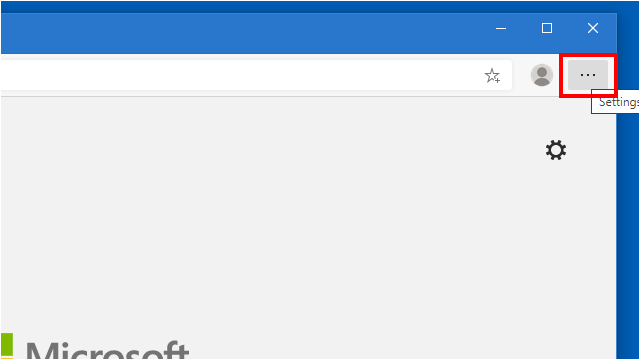
Click on the ellipsis in the top right-hand corner of Microsoft's Chromium Edge browser to view the settings dropdown menu.
Click on the Extensions button to show the extensions and extensions configuration page.

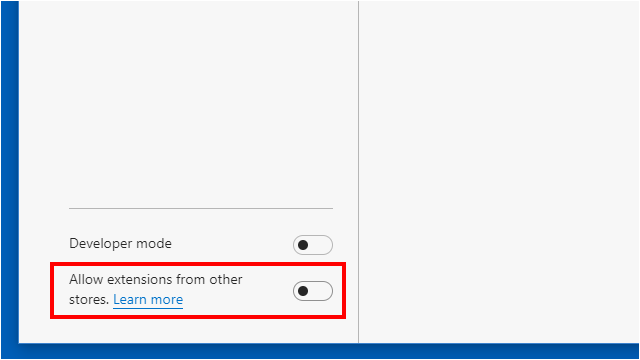
In the bottom left-hand side corner, click on the 'Allow extensions from other stores' toggle to enable installation of third-party extensions from the Chrome Store.
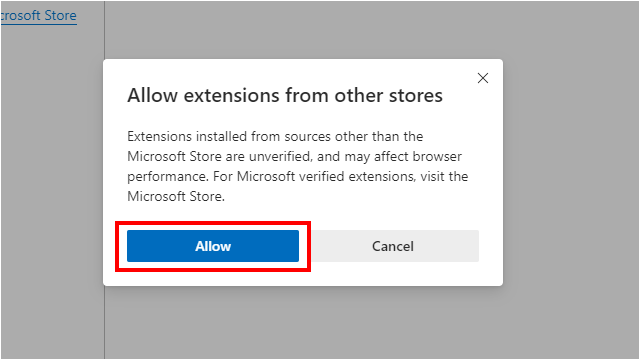
Once the toggle is enabled, an additional confirmation box will be required to confirm the support of third-party extension installation. Click the Allow button to confirm the process and complete the setup for extension installation support.
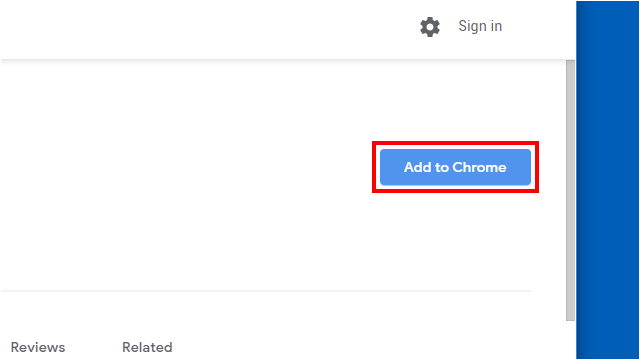
Once enabled, navigate to the QGate Integration Extension extension page and click on the Add to Chrome button.
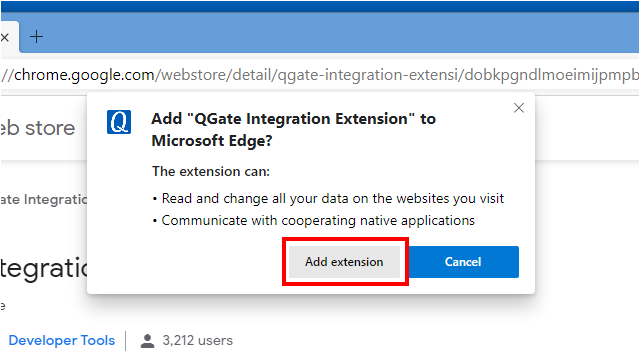
Click on the Add extension button to add the QGate Integration Extension to Microsoft Edge and completing the setting up Microsoft Edge stage.
4.5.2 Setting up intelli-CTi
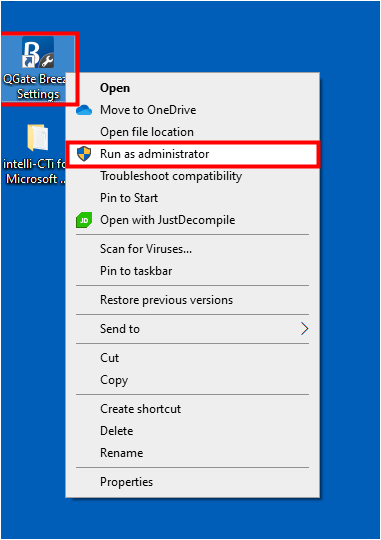
- Locate your QGate Breeze Settings Shortcut in the start menu or on your desktop. Then right click on the shortcut to provide more starting options for QGate Breeze Settings.
- Click on the Run as administrator button to run as a administrator. This is a requirement for changing machine settings like connections.
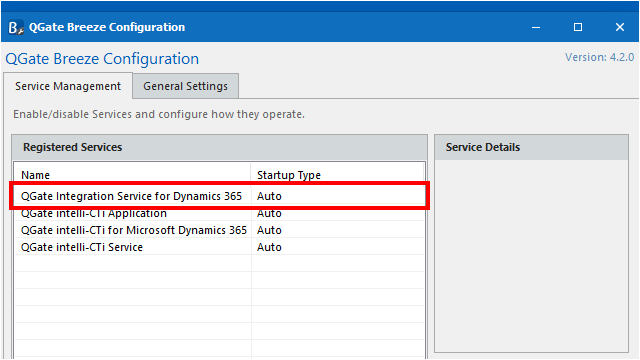
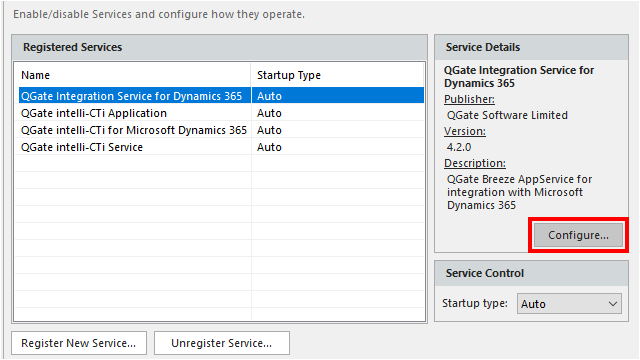
Click on the QGate Integration Service for Dynamics 365 service. This service will contain the configuration options for making a connection to a web browser instance and Microsoft Dynamics 365 instance.
Click on the Configure button to start configuring the service.
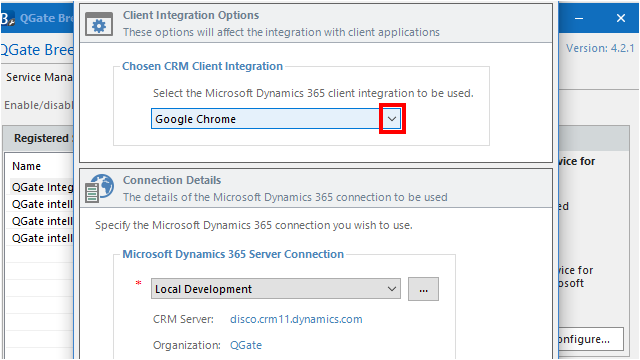
Click on the button Open.
You may also press Alt+Down Arrow.
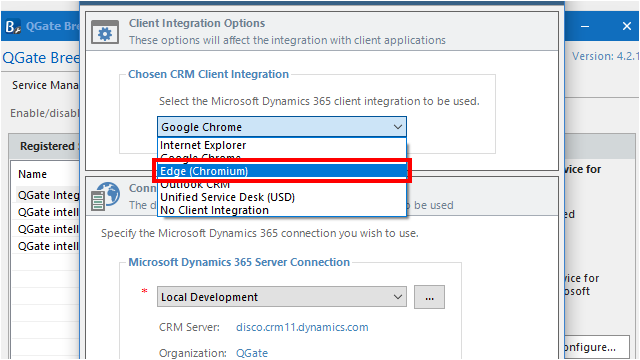
Click on the list element Edge (Chromium).
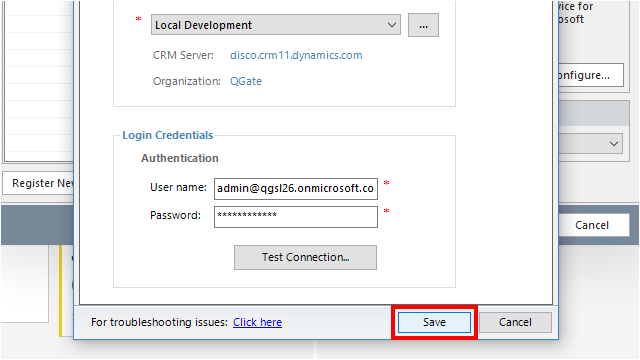
Click on the button Save.
You may also press Alt+S.
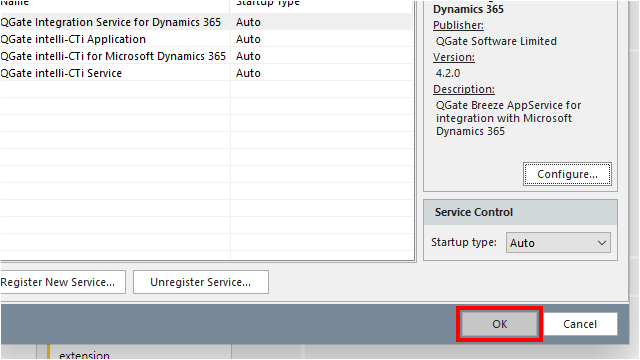
Click on the OK button to complete the setup of Microsoft Edge (Chromium) within intelli-CTi.